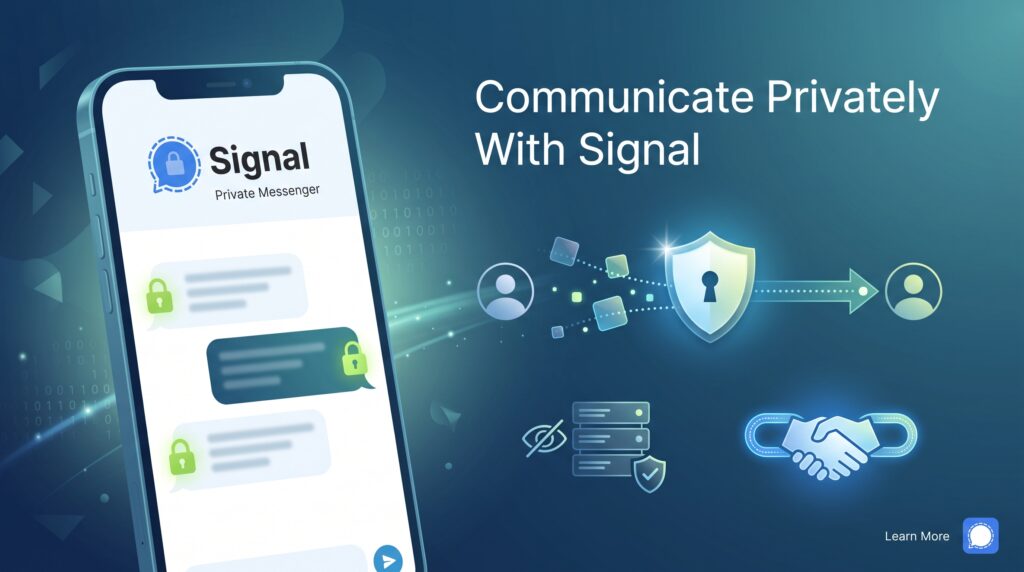
Signal is a user-friendly app that provides advanced security for your voice, text, and video conversations.
Download Signal from your device’s app store.
1) Install Signal on your phone.
Follow the onscreen instructions to register your phone number.
2) Set a username.
Setting a username lets you connect with other Signal users without sharing your phone number. Open Signal, tap your profile picture in the top left, then tap your phone number to access your Profile. Tap the @ symbol to create a username. To connect with others, select “QR code or link” on the Profile page. Others can scan your QR code, or you can generate a shareable URL by tapping “Link.”
3) Enable Screen Security.
Screen Security prevents Signal previews from appearing in your app switcher and blocks other components from capturing screen content.
On Android, tap your profile picture > Privacy > enable Screen Security. On iOS, tap your profile picture > Settings > Privacy > enable Hide Screen in App Switcher.
4) Disable lock screen previews.
Adjust your lock screen notifications to hide Signal message content. On Android, tap your profile picture > Settings > Notifications > Show, then select “Name only” or “No Name or message.”
On iOS, tap your profile picture > Settings > Notifications > Show, then select “Name only” or “No Name or message.”
5) Consider setting an auto-delete timer for sensitive conversations.
Signal lets you set an auto-delete timer for each chat, removing messages from all participants’ apps after the chosen time. This is useful for messages you do not want to keep indefinitely. Note that others can still copy or save messages outside the app.
To set an auto-delete timer, open a chat, tap the three vertical dots, select Disappearing messages, and choose a time. This applies to new messages only. To set a default timer for all new chats, go to Signal > three vertical dots > Settings > Privacy > Default timer for new chats, and select your preferred duration.
6) Consider learning how to blur faces.
Signal can blur faces in photos before you send them. Take a photo in the app, tap the pen icon to edit, select the blur icon, and toggle “Blur faces” on, or manually blur areas with your finger.
7) Consider adding Signal to your Windows or Mac computer.
The desktop version of Signal allows you to use the app on your computer, even when your phone is turned off.
Why is this important?
- Signal encrypts your messages and calls end-to-end. Only participants in the conversation can access the content, unless someone views your screen, receives a copy from a participant, or physically accesses a device.
For support with digital resilience assessments, cyber hygiene training, or policy development, reach out to us at info@tatua.digital or help@tatua.digital . Watch our Cyber Hygiene series on YouTube or Digital Security Resources for accessible tips.