
Apple has long warned users about potential targeting by sophisticated “mercenary spyware” commercial surveillance tools sold primarily to governments by companies such as NSO Group, Paragon, and Cytrox. These alerts, previously delivered via email, iMessage, and account banners, now appear more prominently as push notifications on the Lock Screen and in Settings, making them harder to overlook.
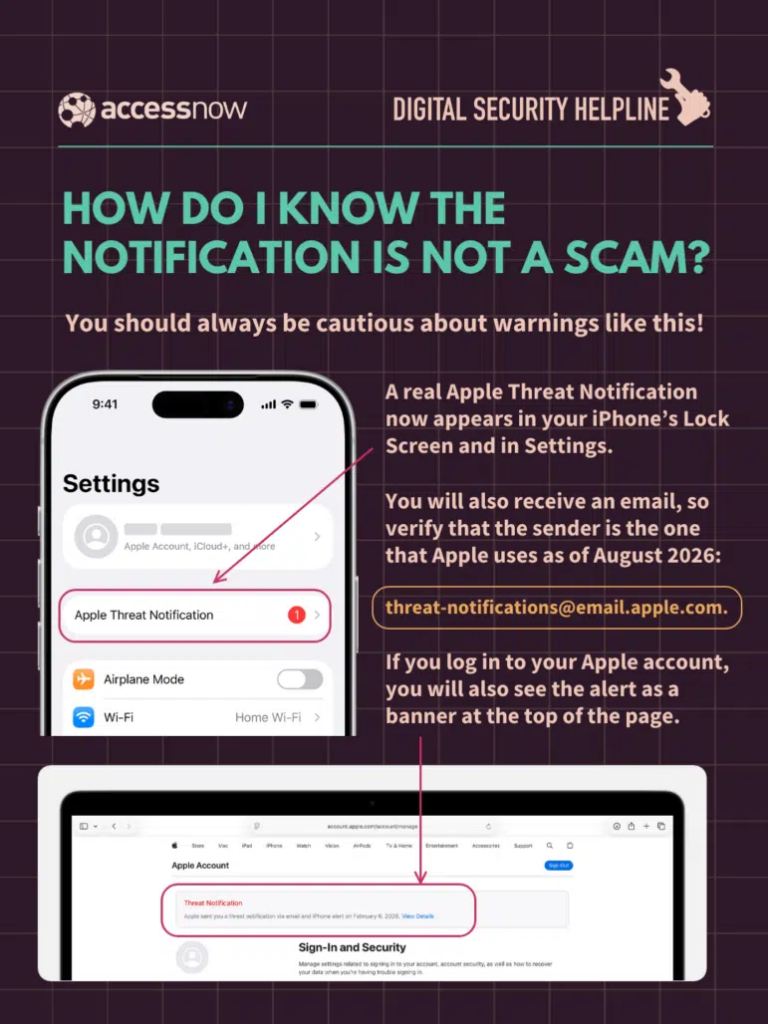
The notification indicates that Apple detected activity that signals a targeting attempt using this type of spyware. It does not confirm whether the attack succeeded, identify the perpetrator, or reveal motives. Further forensic analysis is required for a clearer picture. Spyware of this kind is typically aimed at a small number of high-risk individuals, including journalists, activists, human rights defenders, politicians, and diplomats. However, alerts have reached users in over 150 countries.
Most Important Steps If You Receive an Authentic Notification
Treat the alert seriously, but avoid panic or hasty actions that could destroy evidence. Experts emphasize verification first, then preservation and professional help. Here are the priority actions:
- Verify the notification is genuine.
Legitimate Apple threat notifications do not ask you to open links, install software, or provide login credentials. Check for a matching banner after signing in at account.apple.com. Notifications also arrive via email from Apple and appear on associated devices. Scams and phishing attempts mimic these alerts, so confirmation is essential.
- Perform a backup immediately (priority action)
Do not erase or reset your device. Create a backup right away to preserve potential evidence of the targeting attempt. Data on a powered-on device is continuously overwritten, so act quickly.Follow Apple’s official steps (see Back up iPhone): Using iCloud (recommended for most users):
- Connect your iPhone to a Wi-Fi network.
- Open the Settings app.
- Tap your name at the top, then tap iCloud.
- Tap iCloud Backup.
- Tap Back Up Now.
- Stay connected to Wi-Fi until the process finishes. The date and time of the last backup will appear under the button.
(You can also turn on automatic iCloud Backup so it runs daily when the device is locked, connected to power, and on Wi-Fi.)
- Using a computer (Finder on Mac or iTunes on Windows):
- Connect your iPhone to your computer with a cable.
- Open Finder (macOS Catalina or later) or iTunes.
- Select your device.
- Choose to back up all data to this computer.
- Optionally select Encrypt local backup and set a password for extra security.
- Click Back Up Now.
- Enable high-security settings by turning on Lockdown Mode.
Update your device to the latest software first, then enable Lockdown Mode. This extreme protection reduces the attack surface against sophisticated spyware. Apple has stated it is unaware of any successful spyware compromises on devices with Lockdown Mode active. Official steps (see About Lockdown Mode): On iPhone or iPad:
- Open the Settings app.
- Tap Privacy & Security.
- Scroll down and tap Lockdown Mode, then tap Turn On Lockdown Mode.
- Tap Turn On Lockdown Mode again.
- Tap Turn On & Restart, then enter your device passcode.
On Mac:
- From the Apple menu, choose System Settings.
- Click Privacy & Security in the sidebar.
- Scroll down, click Lockdown Mode, then click Turn On.
- Click Turn on Lockdown Mode (you may need to enter your password).
- Click Turn On & Restart.
- Note: Lockdown Mode limits certain features (e.g., some message attachments, complex web technologies, and incoming FaceTime from unknown callers). You can exclude trusted apps or websites later if needed. Enable it on all your Apple devices for full protection.
Seek expert forensic help promptly.
Contact trusted specialists for a digital forensic investigation. Apple explicitly recommends Access Now’s Digital Security Helpline help@accessnow.org (a 24/7 service for civil society members, including journalists, activists, and human rights defenders).
The Tatua Digital helpdesk(help@tatua.digital) can explain the alert, guide on next steps, perform remote checks, perform backups, and advise on containment.
Take additional protective measures while awaiting analysis.
Minimize your attack surface: keep personal and work activities on separate devices where feasible, reduce the number of apps and accounts, and stay alert to unusual device behavior. No consumer app or scanner can reliably detect or remove all advanced mercenary spyware. Choose any security tools carefully and only from highly trusted sources.
Context and Limitations
Notifications often relate to targeting attempts from months earlier. Even if an investigation finds no infection, that does not equal permanent safety spyware evolves rapidly. Security is an ongoing practice rather than a one-time state. Personalized threat assessments and continuous awareness of emerging risks are valuable for higher-risk individuals.
If you suspect a criminal cyberattack, consider reporting it to authorities only after consulting legal counsel to assess safety. Similar alerts from WhatsApp, Facebook/Meta, or Google should be handled with the same care and verification.
Apple’s expanded push notifications represent an improvement in reaching potential targets and prompting investigations that have previously uncovered broader abuse patterns. For civil society members, the Tatua Digital Resilience Centre remains a primary recommended resource for rapid response to digital threats. Stay vigilant, prioritize verification and evidence preservation, and enlist experts rather than relying on quick consumer fixes.
For support with digital resilience assessments, cyber hygiene training, incident response or policy development, reach out to us at info@tatua.digital or submit a ticket at help@tatua.digital . Watch our Cyber Hygiene series on YouTube , Digital Security Resources , HRD Forensic Guidebook for accessible tips.
